 Jason Holt Digital
Keeping PDFs and Images with Attachments

This guide describes Mythic GME 1.7.3 and later.
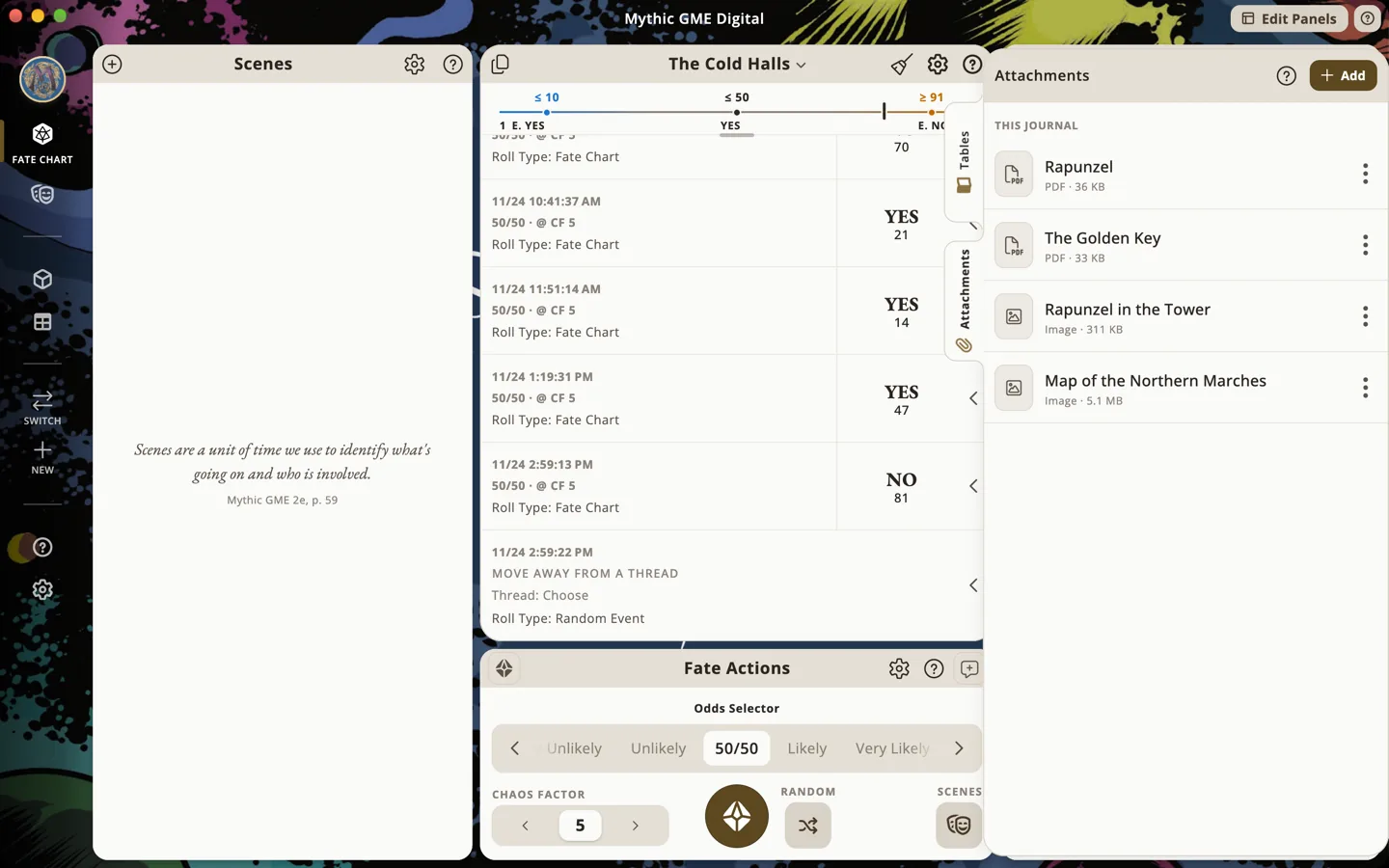
Attachments keeps PDFs and images beside play: a rulebook, a map, a handout, a character portrait. You open them inside the app, so you do not have to leave the Fate Chart.
Attachments is part of Expanded Features, the one-time purchase that unlocks the app's premium features. Without Expanded Features, the Attachments switch shows a lock and opens the purchase options, and the Attachments panel shows an unlock message. Attachments is not available in the web demo.
Turn on Attachments
Attachments is off by default.
- Open Settings, then the Files tab.
- Turn on Attachments.
The same switch is also in the Fate Chart settings, under Panel Features.
When you turn Attachments off, the app hides it. Your files are not deleted. Turn it back on and they show again.
Find Attachments
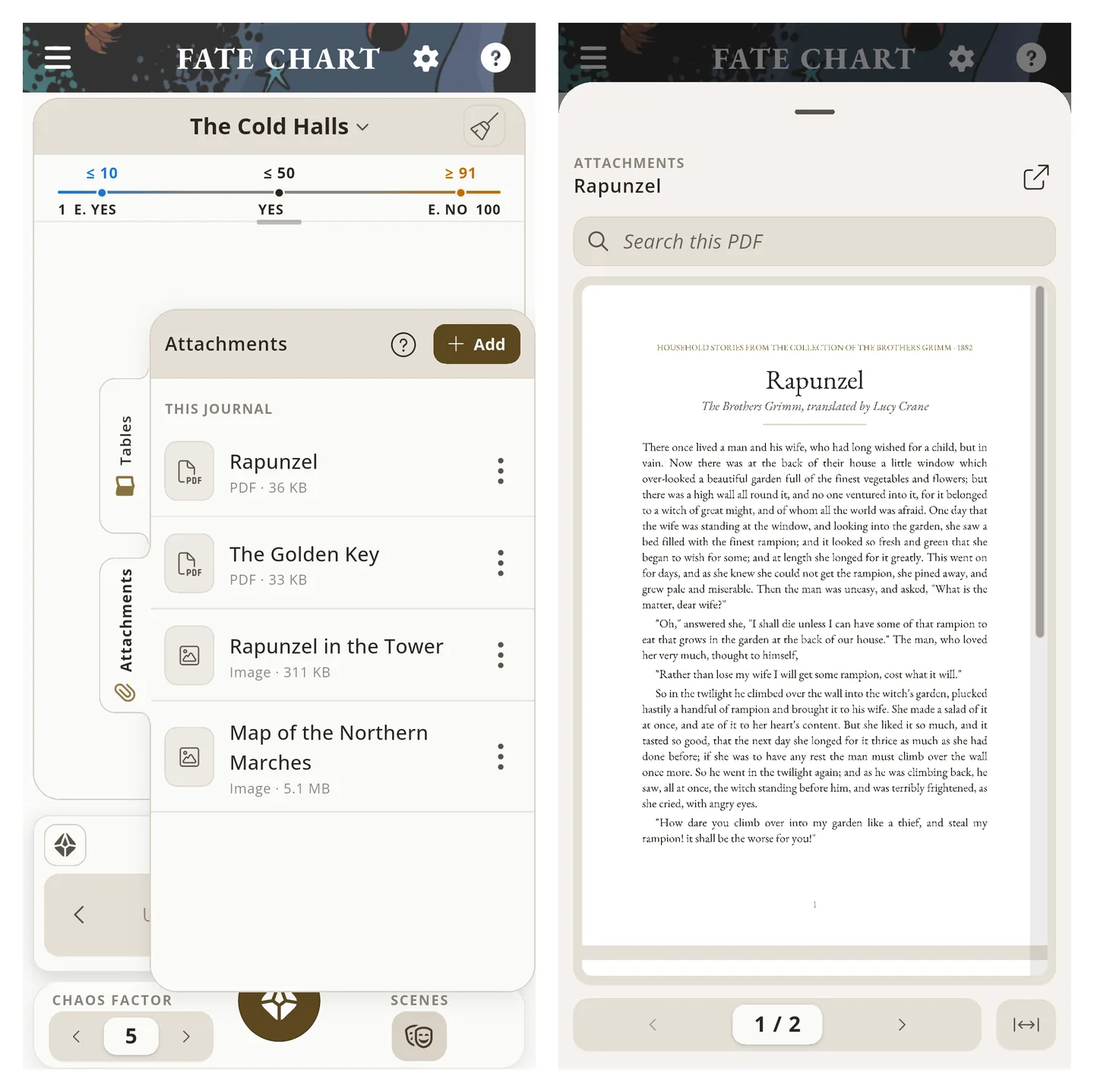
- On a phone: Attachments is a section of the Game Panel, next to Tables, Tracks and Keyed Scenes. In portrait, tap the Attachments tab on the edge of the Game Panel. In landscape, flip to the Game Panel and choose Attachments from the menu on the section title.
- On a tablet or computer: add an Attachments panel to your layout. Tap Edit Panels, tap a slot, and choose Attachments. A layout can have one Attachments panel. While the Game Tables pull-out on the right edge is on, Attachments is also a section of it.
Add a file
- Tap Add. When the list is empty, tap Add a file.
- Pick a file in the file picker.
You can add PDFs and PNG, JPEG or WebP images. HEIC photos are not supported, so convert them to JPEG or PNG first. Each file can be up to 250 MB.
The app copies the file into your storage location. Your original file stays where it was. The name in the list is the file name without its extension, and you can rename it later. Two attachments can have the same name.
A progress message shows while the app copies the file. Tap Cancel to stop the copy, and nothing is left behind. With iCloud, the upload cannot be stopped after it starts. If you close the message, iCloud still finishes adding the file.
Your other devices show a new file only after it is fully copied, so they never show a half-added file.
This Journal and All Journals
The list has two groups, and the newest files show first in each group.
- This Journal: files you add while a Journal is open. They show only while that Journal is open.
- All Journals: files you add while no Journal is open. They show in every Journal.
To move a file to the other group, open its row menu and choose Move to This Journal or Move to All Journals. These choices show while a Journal is open. Moving a file does not copy or change it.
Read a PDF
Tap a row to open the file. On a phone, the file opens in a sheet. On a tablet or computer, it opens inside the panel. Tap Back to Attachments to go back to the list.
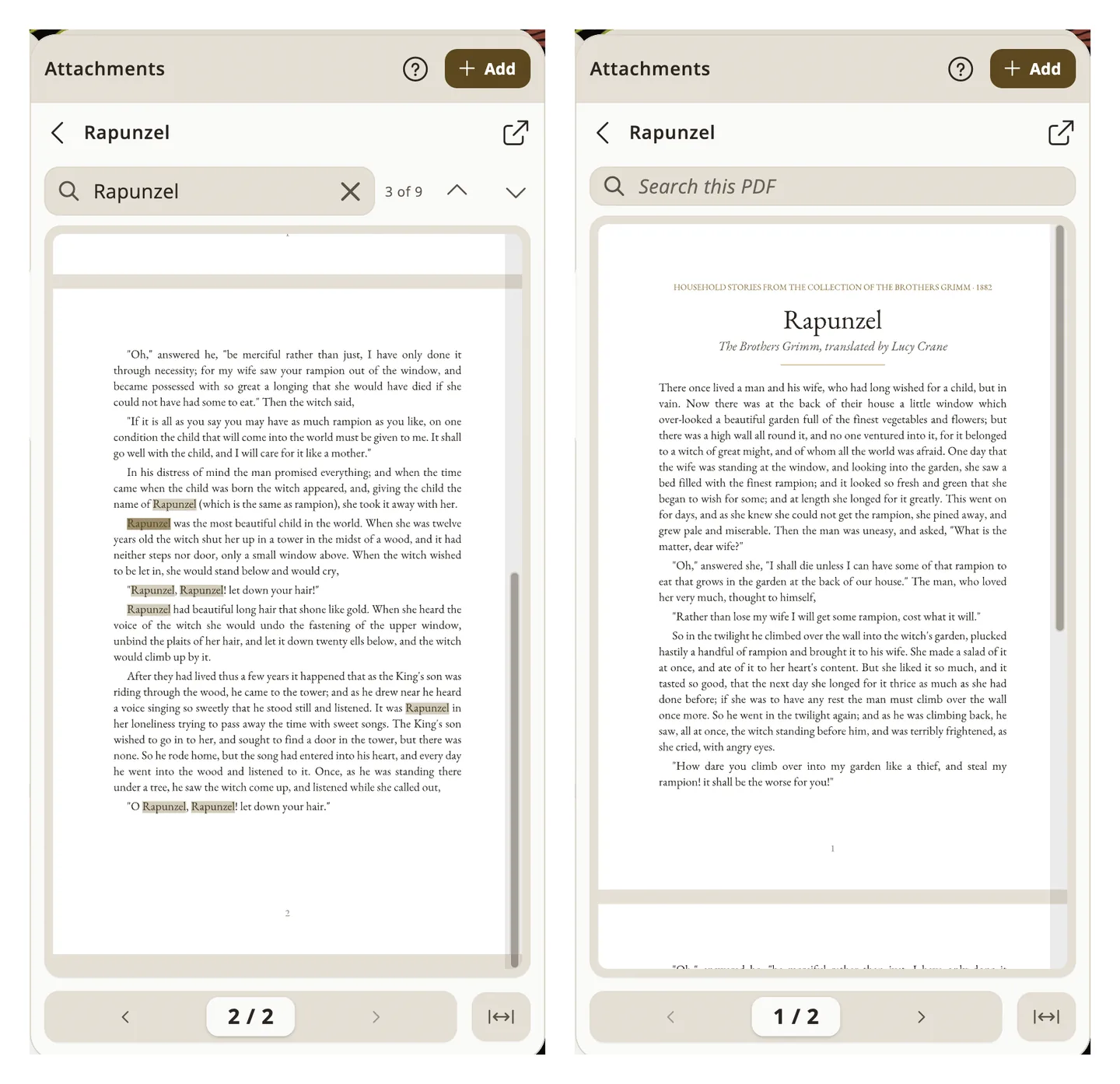
- Search: type a word in Search this PDF and press Enter. The viewer shows the match count, for example "2 of 7", and highlights the match. Use the arrows, or press Enter again, to go to the next match.
- Pages: the page bar shows the current page, for example "3 / 12", with buttons for the previous and next page.
- Go to a page: tap the page number, type a page number, and tap Go.
- Fit width: makes the page fill the width again and goes to the top of the current page.
- Open in another app: on a computer, opens the file in your default app. On a phone or tablet, opens the share sheet.
You cannot edit a PDF in the app.
View an image
Images open in the same viewer. Pinch or scroll to zoom in, up to 6 times the normal size. Drag to move around the image.
Rename, share or remove a file
Each row has a More options menu:
- Rename: changes the name that shows in the app.
- Move to This Journal or Move to All Journals: moves the file to the other group.
- Share: sends a copy through the share sheet. Share works on iPhone, iPad, Android, Mac and Windows, but not on Linux.
- Remove: after you confirm, deletes the file from your storage location. If that location syncs, the file is also deleted from your other devices. You cannot undo this.
Where files are stored and how they sync
The app keeps attachments with your Journals, in an attachments folder in the same storage location. So attachments sync wherever your Journals sync:
- iCloud: on Apple devices, with Use iCloud Sync on. A file that is not on this device yet shows In iCloud, and it downloads when you open it. A new file shows Uploading… while iCloud uploads it, and you can still open it.
- A folder you chose: on a computer, or on Android with Choose a Folder. Files sync if another service, such as Dropbox or OneDrive, syncs that folder.
- The app's own storage: this is the default. Files stay on this device.
Sometimes the details of an attachment get to a device before the file does. Then the row is dimmed and shows Waiting for the file to sync. When you open it, the app tries to get the file. If the file is still not there, the app tells you to try again after it syncs.
The list refreshes when you open it, after each change, and when you come back to the app.
Exports and backups
Journal exports (JSON and Markdown) and the app's Journal backups do not include attachments. The files stay in your storage location. To keep a copy, keep your original files, or copy the attachments folder in your storage location.
When you rename or delete a Journal, or change storage
- Rename a Journal: its attachments stay with it under the new name.
- Delete a Journal: its attachments are kept and move to All Journals.
- Change your storage location: this includes Change Location, Reset Location, the Android storage switches, and turning Use iCloud Sync on or off. Your attachments move with your Journals. If the app cannot copy every file, it stops before it switches, so you lose nothing. A file the app could not read stays in the old location.
Messages you may see
| Message | What it means |
|---|---|
| "This file is larger than 250 MB." | The file is over the size limit. |
| "Attachments can be PDFs or PNG, JPEG or WebP images." | The app cannot add this type of file. Convert it first. |
| "The file couldn't be opened." | The file is damaged, protected by a password, or in a format the app cannot show. |
| "This attachment can't be read here. It may have been added by a newer version of the app." | Update the app on this device, or remove the attachment. |
| "iCloud isn't available. Sign in to iCloud to see your attachments." | Sign in to iCloud on this device. |
| "This file isn't on this device yet, so it couldn't be removed. Try again once it has downloaded." | With iCloud, the file must download before you can remove it. |
Next steps
- Learn more about Journals in A Guide to the Mythic Journals.
- New to the app? Start with Getting Started with the Mythic Apps.
If an attachment does not open or sync as it should, let me know on the Support page.